
Skip to content
  • 7400 Union Park Ave Suite 101

  • info@quomation.com

  • About
  • Live Chat
Quomation Insurance Services
  • Home
  • Products
    • AgencyStream Manage
    • AgencyStream Quote
    • AgencyStream Portal
    • IT Consulting Projects
  • Announcements
  • Live Chat
  • Contact
801.226.1395

Contact us

Quomation Insurance Services
  • info@quomation.com
  • 801.226.1395

How to Create an Auto Quote

Knowledge Base

  • AgencyStream Quote
    • How to Bridge a Quote to AgencyStream Manage
    • How to Create an Auto Quote
    • How to Create an ID Card
  • AgencyStream Manage
    • Commercial Equipment Tab
    • How to Create a Certificate of Liability
    • How to Create a New Client
    • How to Create a Payment Due Date Report
    • How to Create a To-Do Item
    • How to Create a Recurring To-Do Item
    • How to Create a Reminder on the Dashboard
    • How to Run IVANS
    • How to Run Non-IVANS
    • How to Set Up the Client Search
  • AgencyStream Portal
    • Agency Portal Setup

Announcements

  • AgencyStream Manage® Updates June 2026
  • Quomation Releases New Website
  • January 2024 Newsletter
  • March 2023 Newsletter
View Categories
  • Home
  • Documentation
  • Knowledge Base
  • AgencyStream Quote
  • How to Create an Auto Quote

How to Create an Auto Quote

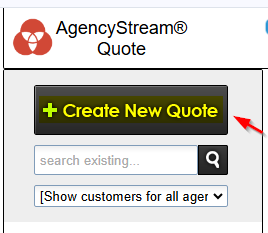
Step 1: If the client is new select ‘Create New Quote‘
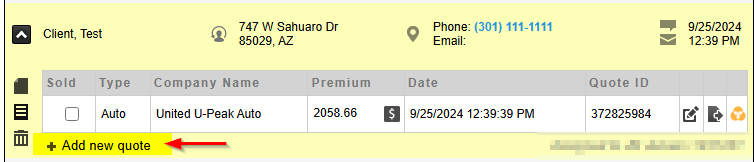
Step 1 cont: If the client is already on AgencyStream Quote, click on the client and select ‘Add New Quote‘
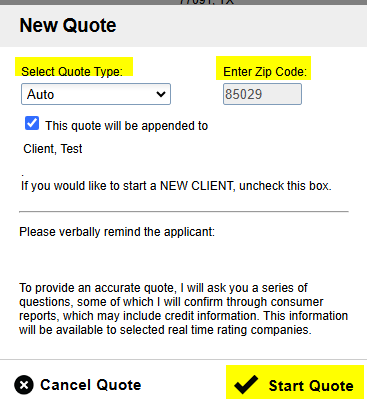
Step 2: Pick the quote type and enter the client’s zip code. If the client is an existing client the zip code will be prefilled, and then select ‘Start Quote‘
Step 3: The fields that are highlighted in each tab are fields that must be filled out to receive a rate
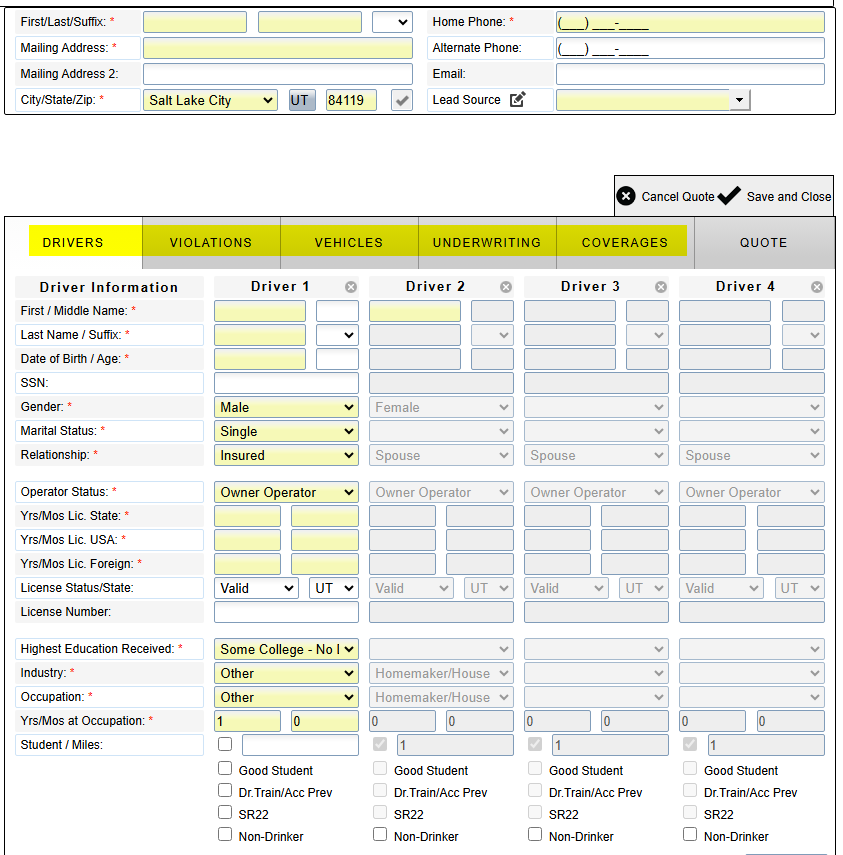
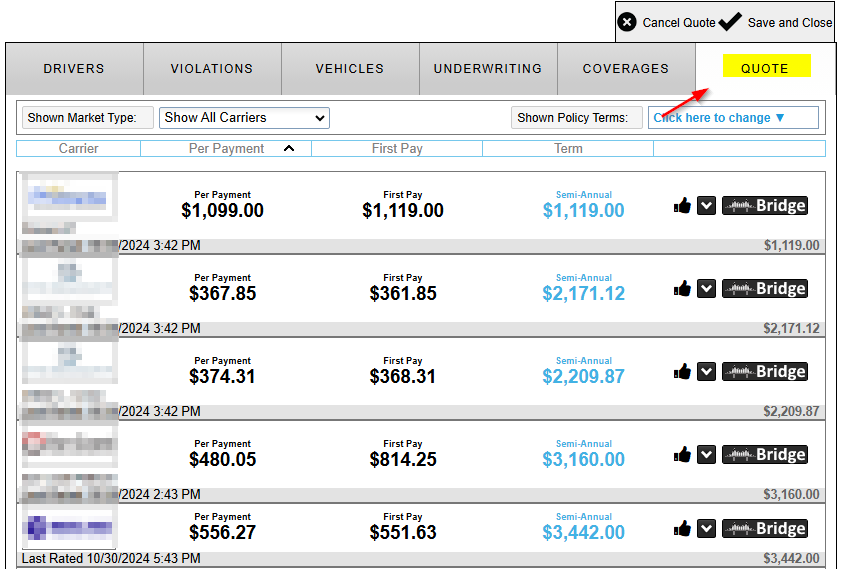
Step 4: Once the highlighted fields in each tab are filled out click on the ‘Quote‘ to see the rates
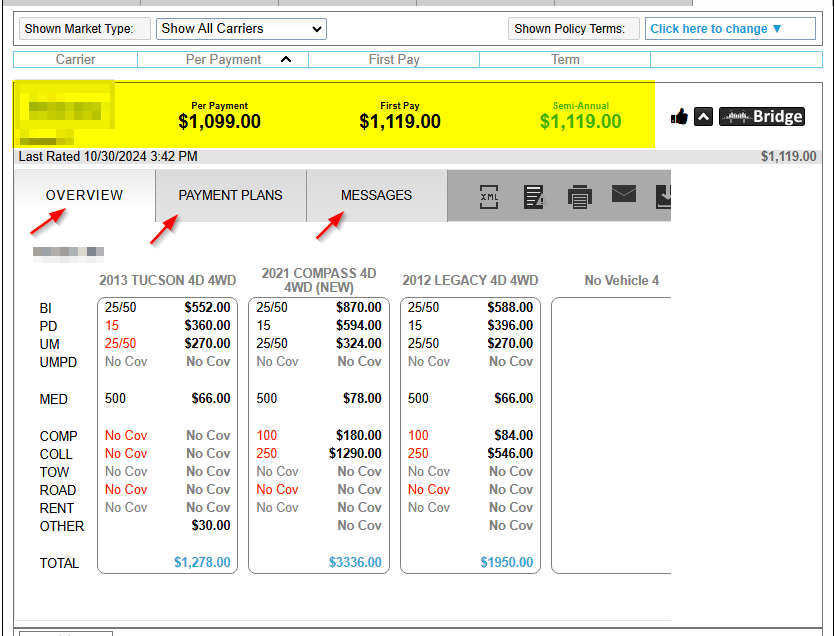
Step 5: Click on the desired rate to view the details. The ‘Overview‘ will show the coverage breakdown – items in red will show a change from the carrier. ‘Payment Plans‘ will show payment plans provided by the carrier. Lastly, ‘Messages‘ will show any messages sent by the carrier
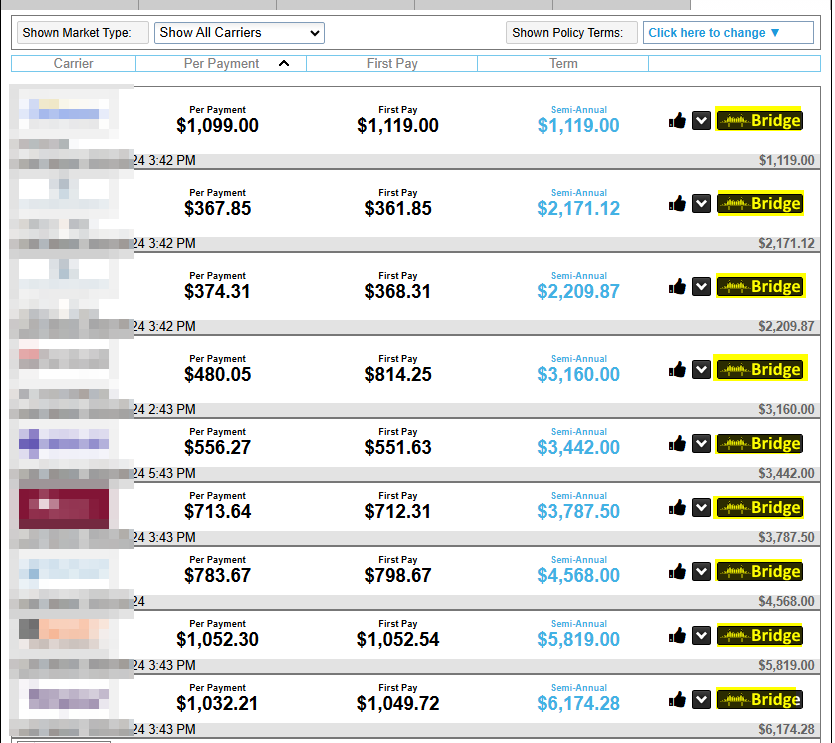
Step 6: To bridge the quote to the carrier’s website click on ‘Bridge‘
Step 7: Once you’re done click on ‘Save and Close‘

Updated on October 30, 2024
How to Bridge a Quote to AgencyStream ManageHow to Create an ID Card
Quomation Insurance Services

Contact

  • (801) 226-1395

  • info@quomation.com

  • PO BOX 982941 Park City UT 84098-2941

Open Hours

Mon – Fri: 7:00 am to 5:00 pm Mountain Time Closed Sat/Sun

Newsletter

Subscribe to our newsletter to get our latest update & news.

801.226.1395

Contact Us

www.quomation.com Copyright © 2023-2026  |  Privacy Policy